By Scott Sumner | AI Findability | Published October 30, 2026
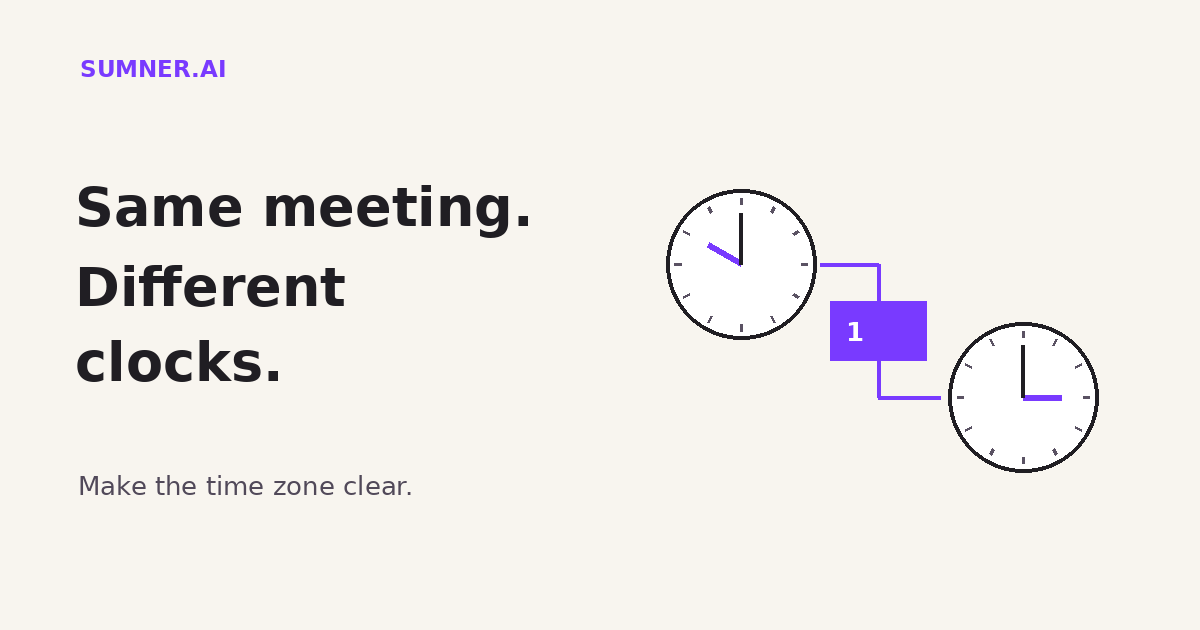
A buyer books a call for 10 a.m. Your website, confirmation email and calendar need to agree on what that means. Booking time zones deserve a place in your website review, especially when customers and staff work in different places.
Answer: Use a scheduling tool that handles named time zones and daylight saving changes. Make the displayed zone clear, distinguish remote calls from in-person appointments, and test the booking page, confirmation and calendar entry as one customer journey.
The software may already handle the conversion correctly. The weak point can be a sentence someone added around it: “All calls are at Eastern time,” or a reminder template with a fixed hour typed into the body.
Jump ahead
- Why the meeting date matters
- What scheduling tools already handle
- Remote calls and in-person appointments differ
- Test the whole booking journey
- Where AI can help without guessing
Why the meeting date matters
“London is five hours ahead” is not a safe year-round rule for a New York appointment. The difference depends on the date because places do not necessarily change their clocks together.
Here is a concrete example checked with the IANA time-zone data available to Python’s zoneinfo library: 10 a.m. in New York on October 30, 2026 is 2 p.m. in London. On November 2, 2026, 10 a.m. in New York is 3 p.m. in London.
Same local starting hour. Different conversion. These are calculated examples, not observations of a customer’s booking system.
This is why I would keep the actual date and named zones with a scheduling instruction. America/New_York is a time-zone identifier with date-dependent rules. A fixed UTC offset alone does not express those seasonal changes. A customer-facing label can be plain English, but the system underneath needs the right zone.
Do not turn the example into a reason to manually move every appointment. A properly configured calendar can already represent the correct instant. Changing working invitations based on a guess can create the very problem you are trying to prevent.
What scheduling tools already handle
Calendly’s time-zone overview, updated October 13, 2026, says it detects an invitee’s time zone and displays availability in that local time. Invitees can choose a different zone from the scheduling-page dropdown. Calendly also says it handles daylight saving adjustments.
Google Calendar’s guidance explains that an event appears in your local time zone and in the local time zones of people you invite. Seeing different clock times does not, by itself, mean the appointment is wrong.
That distinction matters during support. A host seeing 10 a.m. and an attendee seeing 3 p.m. may be looking at the same appointment. Compare the date and zones before asking someone to rebook.
The part I would inspect closely is the text outside the calendar. A static website sentence, a copied email template or a manually written reminder can contradict a correct invitation. Automation does not repair an instruction it was never given control over.
Keep appointment details connected to the booking record where your tools support it. Avoid typing a second version of the time into a reusable template. If you need a human explanation, include the date and zone rather than an unlabeled hour.
Remote calls and in-person appointments differ
For a remote consultation, showing each participant their own local time is useful. Nobody needs to mentally convert an hour before deciding whether they are free.
An in-person appointment has a physical destination. Calendly recommends locking the time zone to the event location for those events. That is a different choice from assuming every event should follow the visitor’s device.
Imagine someone traveling to a workshop in Jacksonville. The workshop starts at the venue’s local time, even while that person is booking from a hotel in another zone. The page should make the location and time context obvious. This is a fictional scenario, but a useful test case for a real booking flow.
Decide which kind of event you are offering before changing settings. A remote strategy call and a local workshop should not inherit identical time-zone behavior just because they use the same scheduling account.
Test the whole booking journey
Use a clearly marked test event or an approved internal slot. Do not take a real customer’s place or send unexplained test invitations to staff.
- Open the actual booking route from your website, not just the scheduler’s admin preview. Check whether the page says remote or in person and whether the zone is visible.
- Select a date and inspect the same available appointment in another relevant zone using the scheduling page’s controls. Compare that exact date, not today’s offset.
- Complete the test with an address you control. Read the confirmation, any reminder template and the calendar entry together.
- Check the meeting link or venue address. A correct time with the wrong destination is still a failed appointment.
- Cancel the test and confirm the slot is released where appropriate. Keep a short record of the date, zones and result so someone else can repeat the check.
For cross-border work, include a test date near a clock change in each relevant region. You do not need to check every zone on earth. Start with the places your customers actually book from.
Use the contact-form testing guide for the related principle: follow what happens after the visitor clicks. A success screen does not explain the rest of the experience.
Where AI can help without guessing
AI can review the wording across your booking page and message templates. Give it sanitized text and ask it to flag unlabeled times, conflicting locations and statements that assume a fixed difference between cities.
Review this booking-page copy and these notification templates. Flag any time without a date or time zone, any conflict between remote and in-person instructions, and any hard-coded time that could disagree with the booking record. Do not invent a conversion or change the appointment. Return the exact sentence and the question we need to resolve.
That is a useful review task. Let the scheduling system or a date-aware time-zone converter handle the actual conversion. If an AI agent is allowed to create appointments, require it to use the approved calendar tool and the customer’s confirmed date and zone rather than converting from a remembered offset.
Keep this separate from staffed business hours. The booking can have a correct time zone and still offer hours your team cannot cover.
Make the next appointment easy to keep
Pick one important booking link and run a controlled test from the customer’s side. The result you want is simple: both people know when and where to show up.
If the path from your service page to the actual appointment needs a broader review, a Website Findability Audit can help identify the gaps. Getting chosen is not finished when someone clicks Book.
Sources
- Calendly: Time Zones overview, invitee display, daylight saving adjustments and in-person event settings.
- Google Calendar: Use Calendar in different time zones, local display for organizers and invitees.
- Python: zoneinfo, IANA time-zone support used to calculate the dated New York and London examples.
Sources checked October 30, 2026. The test procedure and copy-review prompt are Scott Sumner’s recommendations, not a claim that these tools have caused missed appointments.