By Scott Sumner | AI at Work | Published October 17, 2026
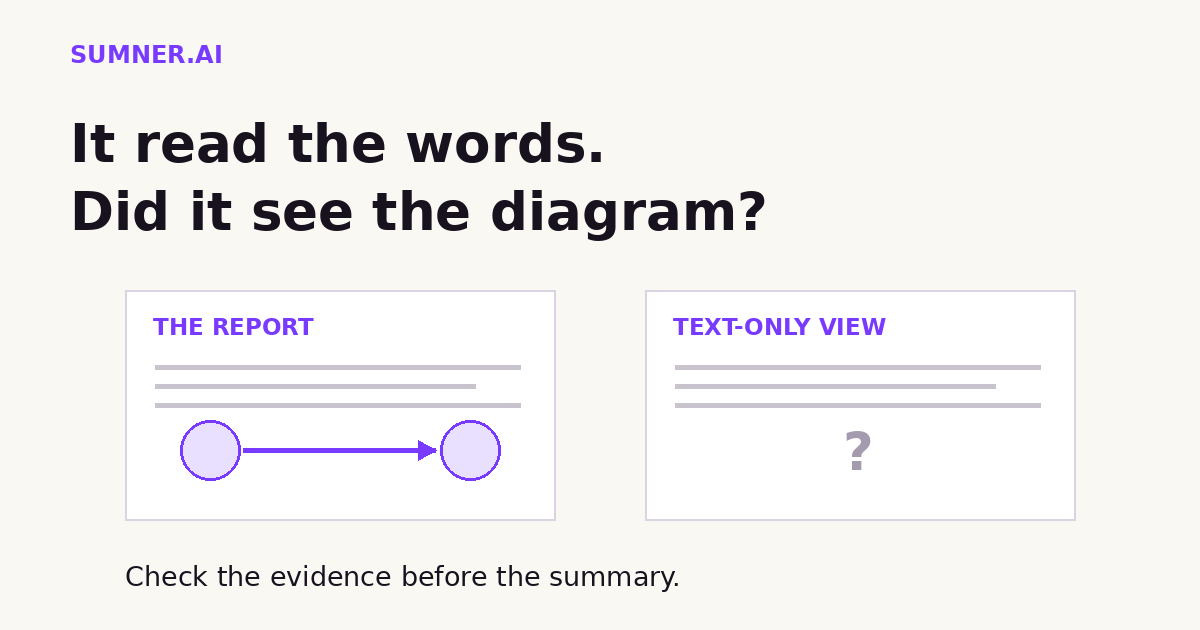
AI document analysis can save a business owner time reviewing reports. Before relying on the summary, check whether the tool received the charts and diagrams as well as the words.
Answer: AI can analyze document visuals only when the chosen model and file-processing route support them. Some routes extract text without embedded images. Check a known chart or diagram before relying on a report summary, and use underlying data for exact calculations.
The attachment icon proves that you supplied a file. It does not prove that every useful part of that file reached the model. A small check at the beginning can prevent a very convincing review of half the evidence.
Jump ahead
- What can disappear from a document?
- Why the upload route matters
- A practical visual check
- When you need exact numbers
- What to change in your workflow
What can disappear from a document?
Imagine a project report with a diagram showing that customer approval must happen before production starts. The paragraphs name both activities, but only an arrow in the diagram shows their order.
This is a fictional example. A text-only extraction could preserve the activity names while losing the relationship that makes the schedule useful. An AI summary might then discuss both activities without explaining the dependency.
The failure starts before the writing. Asking for a more detailed summary cannot recover visual evidence that was never supplied.
Similar risks apply to screenshots of dashboards, diagrams embedded in Word files and charts pasted into slide decks. Captions may survive while the visual itself does not. A model can sometimes infer a plausible explanation from the surrounding words, which makes a broad question such as “Do you understand this report?” a poor test.
Why the upload route matters
OpenAI’s API file-input documentation makes a specific distinction. For PDF inputs on vision-capable models, the API extracts text and page images. For non-PDF document and text inputs, including DOCX and PPTX, it extracts text only. Spreadsheets have a separate processing flow.
That is documentation for those API file inputs. It is not a statement that every AI product handles a Word file the same way.
OpenAI also documents visual retrieval for PDFs in ChatGPT Enterprise. That is a product-specific capability, not a reason to assume an arbitrary chatbot, connector or company knowledge base reads embedded visuals.
My recommendation is to ask about the actual route used in your business: this account, this upload method, this file type and this model. A provider saying “we use a vision model” does not explain whether its document importer passes images to that model.
Where an API workflow needs a slide’s visual layout, exporting that slide to PDF and using a documented vision-capable PDF path can be appropriate. Inspect the export first. Conversion can change page breaks, crop labels or make small text harder to read. Keep the original.
A practical visual check before the summary
Choose one page whose meaning depends on something visual. Use a non-sensitive sample if you are still evaluating the tool or workspace.
- Identify the evidence yourself. Note the page, diagram and one relationship that is not explained in the surrounding paragraph.
- Ask a narrow question. For a process diagram, ask which step the arrow leads to. For a chart, ask for the axis labels, units and legend before asking for a trend.
- Compare with the original. An answer that sounds reasonable is not enough. Check whether the labels and relationship match.
- Separate unreadable from absent. Tiny labels may be visible but illegible. A missing diagram needs a different fix from a blurry one.
A useful starter prompt:
Before summarizing this report, inspect the diagram on page 4. Name the labeled steps and describe the arrow connecting them. Separate what you can directly read from what you infer. If the visual is unavailable or unclear, say so rather than reconstructing it from the nearby text.
Replace page 4 with the real page. This is a diagnostic prompt, not proof that the whole document was processed. A correct answer on one diagram does not establish complete coverage of a long report.
OpenAI’s data-analysis guidance explicitly warns that a file can upload successfully yet be too large, complex, image-heavy or poorly structured for complete analysis. For incomplete results, it suggests working with specific sections or smaller files.
When you need exact numbers, supply the data
Seeing a chart and calculating from its source data are different tasks. A picture can help explain a pattern. It may not provide the exact values needed for a business decision.
If you want a precise comparison, provide the relevant spreadsheet or approved data export alongside the chart. State the units, period and calculation you need. Check the output against the source rather than accepting a number because it matches the general shape of the bars.
Keep identifiers intact during that preparation. Our guide to AI spreadsheet cleanup explains why a customer ID must not quietly become an ordinary number.
Do not upload more sensitive material just to make the test convenient. Use the workspace and sharing process approved for that information. Visual support does not settle data-handling permissions.
What to change in your workflow
Add a visual-evidence check to the brief for recurring report analysis. Record the tool, file route and the important content types it must preserve. When the route changes, run the same sample again.
For an internal assistant, this complements keeping reference documents current. One question is whether the right document applies. Another is whether the assistant received the part that contains the answer.
I would start with one report, not a company-wide document conversion project. Pick the diagram or chart that could change a decision and check it before asking for an executive summary.
If you need help mapping a recurring AI task to the website, files and business systems behind it, contact Scott Sumner with that workflow. The useful starting point is the job and its evidence, not another tool subscription.
Sources
Official documentation checked October 17, 2026. Capabilities are specific to the products and processing routes described; this is evergreen workflow guidance, not a new product announcement.