By Scott Sumner | AI at Work | Published October 31, 2026
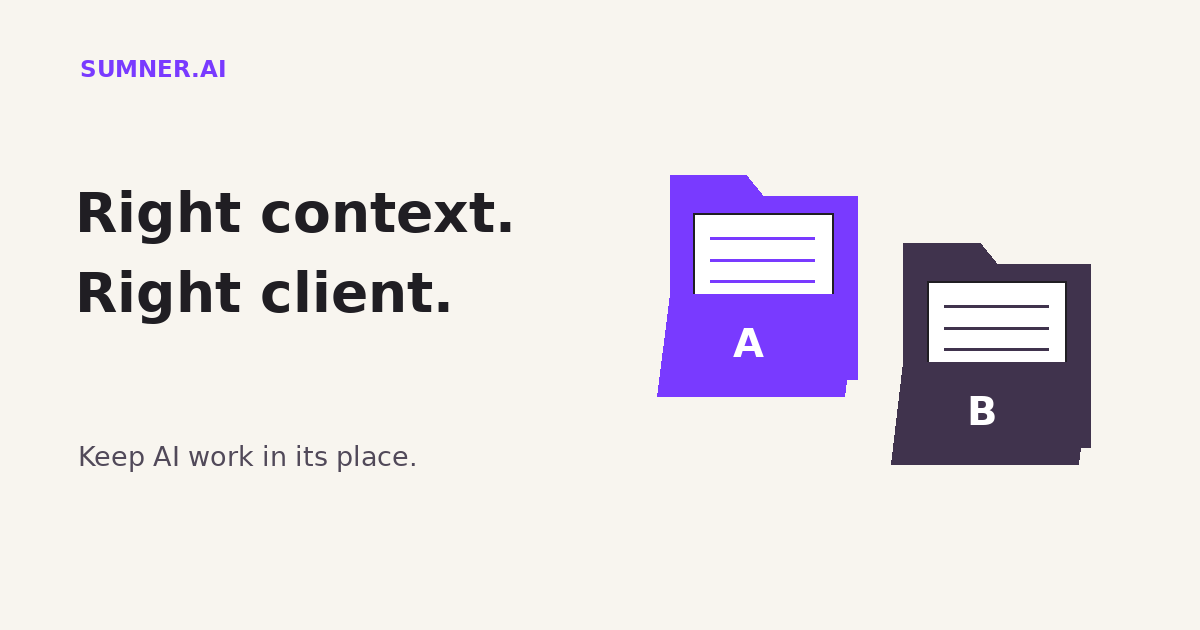
ChatGPT remembering your work can save you from explaining the same brief every morning. When you work for several clients, though, useful memory needs a boundary. A project name alone does not tell you what context a conversation can draw on.
Answer: For separate client work in ChatGPT, check each project’s memory mode, source files and sharing settings. Project-only memory limits conversation references to that project. It does not replace access controls, data approval or review of what people upload.
The aim is not to make AI forget everything. It is to keep the right background available for the right job, without bringing another client’s assumptions into the room.
Jump ahead
- A folder name is not a memory setting
- Set up one useful client workspace
- Memory and sharing answer different questions
- Check the boundary without private data
- Keep the workspace useful over time
A folder name is not a memory setting
Putting each client’s chats in a different project is a sensible organizational habit. Whether those conversations can reference material outside the project is a separate product setting.
OpenAI’s Projects documentation distinguishes default memory from project-only memory. With project-only memory, previously saved memories are not referenced, chats can reference other conversations inside the project, and conversations outside it cannot be referenced in either direction.
Default memory behaves differently across plans. OpenAI says Enterprise and Edu project conversations remain contained within the project, while saved memories may still be referenced. For other plans, including Business, default-memory chats can reference project and non-project conversations, subject to the documented memory settings and exclusions.
That is why I would not give an agency a blanket instruction to “just make a folder for each client.” The plan and memory mode matter. Check the actual account your team uses rather than copying a screenshot from someone else’s subscription.
For client-specific work, my preference is an explicit project-only setting where available and approved. Not because more context is always bad. Because a correct answer for one client can be the wrong answer for another.
A preferred tone, a regional service restriction or a pricing assumption does not have to be secret to cause trouble in the wrong draft. This is an accuracy problem as well as a confidentiality concern. It is not a claim that a particular client incident occurred.
Set up one useful client workspace
Start with the approved business account and workspace. Check that the information is allowed in that tool before uploading it. A memory setting is not permission to process confidential material.
As checked on October 31, 2026, OpenAI’s instructions say to open the project’s settings, choose Default memory or Project-only memory under Memory, and save. The documentation says a change may take a few hours to take effect. Shared projects automatically use project-only memory and cannot switch to default.
Availability also depends on personal and workspace memory controls. If the option is missing, check the administrator’s policy and the current documentation. Do not work around an organizational restriction by moving client files to a personal account.
Then add a short, approved brief. It should explain what this client sells, who the audience is, which claims are approved, and what is outside scope. Include the actual source documents needed for the work, not every file you have ever received.
Use project instructions for how you want the assistant to work. OpenAI says these instructions apply within that project and override global custom instructions. That makes them useful for a client’s writing rules. They are not a substitute for a technical memory boundary.
Use this project’s approved brief and source files for client-specific claims. Do not fill missing prices, locations, service promises or results from general assumptions. Identify the source of important factual statements. If a required detail is missing or conflicting, flag it for review.
This is a drafting instruction, not a security guarantee. It gives the editor a clearer starting point while the account settings do their separate job.
Keep reusable agency methods in a clean template without another client’s material. Copy the method into a new project when useful. Do not duplicate an old client workspace and assume that changing the title removes its history.
Memory and sharing answer different questions
Project-only memory addresses which conversations can provide context. Sharing controls address who can access the project. Neither question answers the other.
OpenAI says members of a shared project can view its chats and files, and all members can download files added to it. A colleague invited to help with one task may therefore see more than the single draft you had in mind.
Before inviting a client or outside collaborator, review the whole project. If it contains internal discussions or material they should not see, do not share it as-is. Prepare a separate approved collaboration space with only the intended content.
Check the invitation mode, too. The documentation describes both invited-person access and an “Anyone with a link” option for applicable accounts. Use the access model your organization approves; do not assume possession of a project link is harmless.
Connected apps are another route to information. A project can use supported apps, so review what has been connected and what people are allowed to retrieve. Project-only conversation memory does not mean the assistant can never receive new information from an app or a fresh upload.
Also keep training, retention and memory settings separate in your review. Choosing a memory mode does not create a new retention policy or override the workspace’s data controls.
Check the boundary without private data
Use fictional material to rehearse the setup before putting approved client work into it. Two test projects are enough to make the process concrete.
Give Project A a made-up workshop name, such as Copper Finch, and a fictional audience. Give Project B a different name and audience. Set the intended memory modes and wait for any documented change period. Start fresh chats in the appropriate projects and ask for summaries grounded in their own briefs.
Inspect the settings as well as the answers. If unrelated details appear, stop and examine the source files, chat history, memory mode and connected tools. Do not keep prompting until the answer looks clean and call that a fix.
A clean answer is useful evidence that a particular test behaved as expected. It is not proof of isolation, a security certification or a guarantee about every future response. The configuration and access review still matter.
For real client drafts, the practical check is straightforward: compare the offer, audience, names and promises against that client’s approved brief. Familiar language can slip through an edit precisely because it sounds reasonable.
Keep the workspace useful over time
A well-separated project can still contain outdated advice. Retire superseded briefs and keep current reference material distinct from historical notes. Do not turn the project into a warehouse where last year’s offer and this year’s offer have equal authority.
Review access when a collaborator leaves. Review sources when the client changes direction. Keep the boundaries clear enough that a new team member can explain which project they should use and why.
The payoff is ordinary and worthwhile: less re-explaining, more relevant first drafts, and fewer assumptions imported from the wrong job. Those are intended workflow benefits, not measured results from a client case study.
Start with one client project. Check its memory mode, member list and source inventory together. If your team needs help designing an AI-assisted content workflow around real business boundaries, contact Scott Sumner.
Sources
- OpenAI: Projects in ChatGPT, including project-only and default memory, plan differences, project instructions, sharing, connected apps and workspace controls.
Documentation checked October 31, 2026. Product behavior and availability can change. The setup recommendations and fictional test exercise are Scott Sumner’s practical guidance, not an OpenAI security audit.