By Scott Sumner | AI at Work | Published October 21, 2026
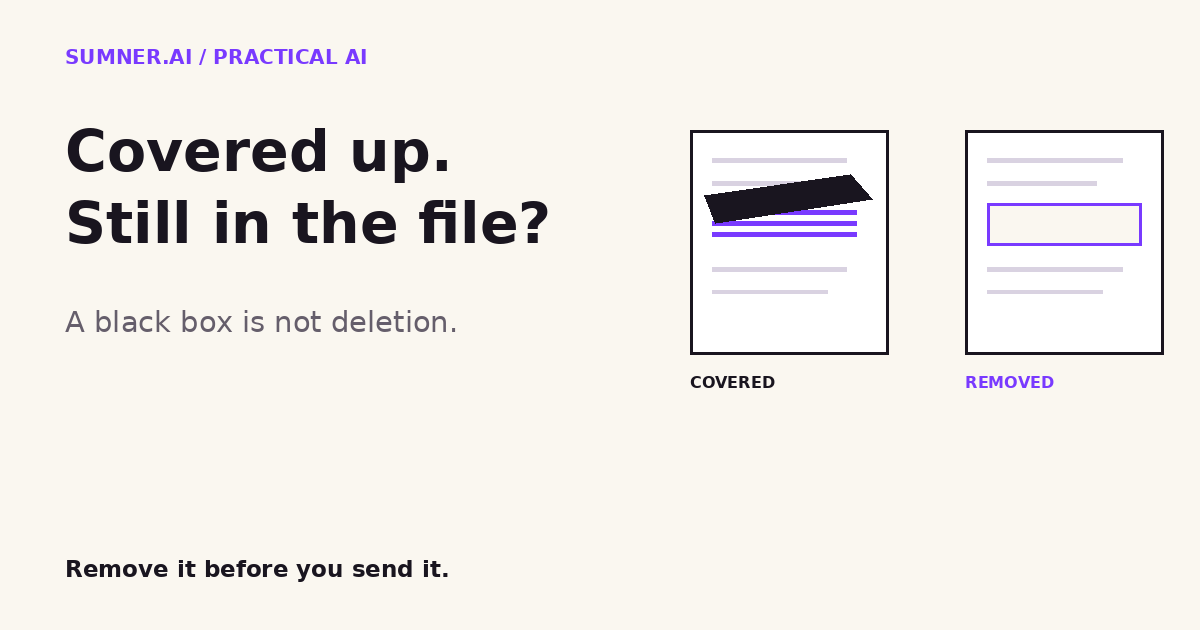
You can use AI to work with a business document without sharing every detail in the original. But hiding a customer name on screen is not the same as removing it from the file.
Answer: Before uploading a PDF to AI, remove sensitive content with a real redaction tool, apply the changes, sanitize hidden information and check the saved copy. Drawing black boxes over text is not reliable redaction. Use only an approved AI workspace for the remaining content.
This is an old document-handling problem with a new destination. The useful question is not whether the PDF looks private. It is what you are actually sending.
Jump ahead
- Why covering text is not removal
- Start with less information
- Prepare a shareable copy
- Check the file before uploading
- Redaction is not anonymity
- A useful team exercise
Why covering text is not removal
A PDF can contain more than the page you see: text objects, images, comments and metadata. An opaque rectangle added as an annotation may cover a name while leaving the underlying text in the document. Changing text to white has the same basic problem: appearance changed, information remained.
Adobe distinguishes those cosmetic approaches from its Redact tool, which permanently removes selected text and graphics when the changes are applied. It separately provides sanitization for hidden information. These are different operations, and both deserve attention.
That does not mean every AI tool will recover every hidden item. File handling differs between products and upload routes. The point is simpler: do not rely on a particular importer failing to read something you meant to withhold.
My standard is removal before transfer. A prompt saying “ignore the confidential parts” comes too late to control what was uploaded.
Start with less information, not more redaction
Before opening a redaction tool, decide what the AI needs for the task. A writing exercise may need a short, approved passage rather than the entire proposal. A demonstration may work just as well with invented names and figures.
For example, imagine an agency wants help making a project update easier to read. That is an illustrative scenario, not a client case study. The assistant may need the delivery milestones and the intended tone. It may not need the customer’s billing address, internal margin or account contact’s mobile number.
A clean excerpt can be easier to review than a long file with dozens of exclusions. But it still needs a check: copying from the original can carry the sensitive detail into the new document.
Do not remove facts the task genuinely depends on and then expect a reliable answer. If a decision requires confidential evidence that your approved environment cannot accept, change the workflow rather than pretending the missing information does not matter.
Prepare a shareable copy, not a decorated original
Adobe’s Acrobat Pro instructions, updated August 31, 2026, describe selecting Redact a PDF, marking text or images, selecting Apply, choosing whether to sanitize hidden information, and saving the result. Menu wording can vary by version.
The important distinction is between marking content and applying the removal. A file waiting for someone to click Apply is not the finished sharing copy.
- Keep the original protected. Work on a separate copy. Use a clear filename so the original does not end up in the upload picker by mistake.
- Remove the information you have decided to withhold. Use a tool designed for redaction, not a drawing or highlighting tool. Review repeated names and other occurrences, including visible images. Text search alone is not a complete review of an image-based document.
- Apply the redactions and inspect hidden information. Use the editor’s sanitization controls. Adobe identifies metadata, embedded content and hidden layers as possible sources of information beyond the visible page.
- Save and reopen the final copy. Verify the file you will actually send, not the working version still open in another window.
A password or copying restriction is not a substitute for this process. Access controls determine who can open or use a document; redaction changes the information the recipient receives.
Check the file before uploading it to AI
Begin with a harmless practice document containing a distinctive fictional marker, such as CLIENT-EXAMPLE-472. Remove that marker using the team’s actual workflow, then reopen the saved result.
Can the marker still be found with search? Does selecting and copying the surrounding text into a local text editor reveal it? Are there comments, attachments or document properties that still contain information you meant to remove?
These are useful failure checks, not a security certification. Passing a text search does not prove that images, metadata or other document objects are clean. For sensitive material, have the appropriate security or data owner approve the method and review the result.
Do not upload the unverified original to an external AI service to ask whether it is safe to upload. That turns the test into the disclosure you were trying to prevent.
Once the sharing copy is approved, check which file was attached. A sensible naming convention helps: keep the restricted master outside the folder used for approved uploads. The last step should be boring and unambiguous.
Removing names does not automatically make a document anonymous
A proposal can identify a customer through a project address, a distinctive business description or a combination of dates and amounts. Removing the name alone does not settle whether the remaining material is appropriate to share.
Read the approved copy for meaning, not just black rectangles. Ask whether someone familiar with the context could still recognize the person or business. This is a practical review question, not a claim that a checklist guarantees anonymity.
The destination matters too. Redaction does not replace permission to use the document, your organization’s data rules or the AI provider’s handling terms. Our guide to AI training opt-outs and retention explains why a training setting is not the whole data-handling decision.
And do not confuse this with prompt injection. Removing confidential content controls what leaves your organization. Treating an uploaded document as evidence rather than instructions controls what the assistant does with it. Our prompt injection guide covers that separate problem.
Give the team one useful practice exercise
Make a two-page fictional PDF with a name in the body, the same name in a comment, and a separate identifier in the document properties. Ask the person who prepares AI uploads to produce the sharing copy using the normal process.
Review it together, locally. The aim is not to catch somebody out. It is to discover whether “redact it first” means an actual removal workflow or a black rectangle and good intentions.
If your business is introducing AI into document-heavy work, bring one example workflow to a strategy conversation. Use fictional or already approved material for the discussion. Start with what the task needs and what may leave the business, then choose the tools.
Sources and scope
- Adobe: Redact sensitive content in Acrobat Pro, updated August 31, 2026. Source for the apply, sanitize and save workflow.
- Adobe: How to redact a PDF. Source for permanent removal, hidden information and the limits of cosmetic concealment.
Sources checked October 21, 2026. The agency scenario and practice markers are fictional. Workflow recommendations are Scott Sumner’s practical interpretation, not a guarantee of anonymization or regulatory compliance.